

Planning leave
Planning shows your team’s future absences before people submit requests. It helps in busy periods and large teams.
- Click Planning above the calendar.
- The calendar shows planned absences: filled days are yours, days with a coloured ring belong to colleagues in your team.
- To leave, click X or Leaves.
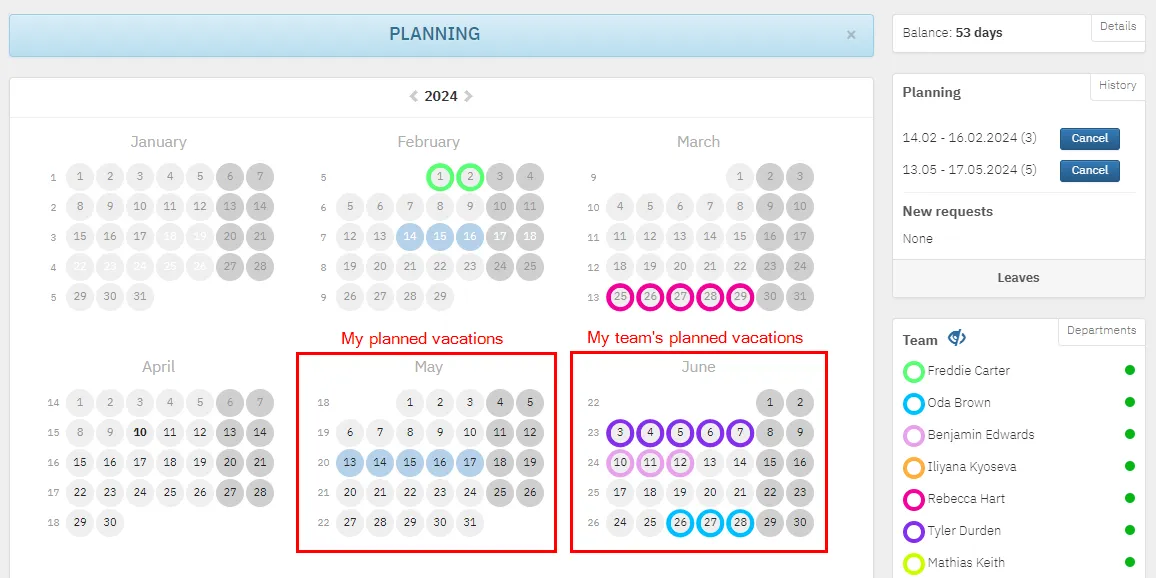
The button is only visible if your administrator has enabled planning in the General settings.