

Leave types and accruals
Settings → Settings holds the leave types, categories, accrual rules and restrictions.
Leave types (Time-off types)
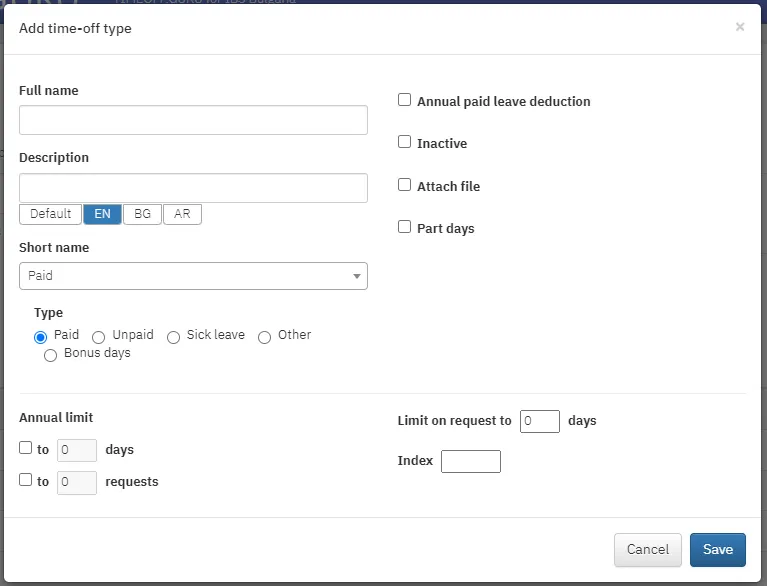
Section titled “Leave types (Time-off types)”- Click Add time-off type.
- Fill in Full name, Description, Short name (the category) and Type.
- Choose whether the type deducts from annual paid or unpaid leave and whether it has an annual limit.
- Click Save.
At the end of each row there are buttons to reorder (arrows), edit (pencil) and delete. Mark a type you do not use as inactive.
Accruals
Section titled “Accruals”With accrual rules, employees do not get their full annual leave on 1 January but build it up over time.
- When adding or editing a leave type, tick Accrual Rules. A Rules tab appears.
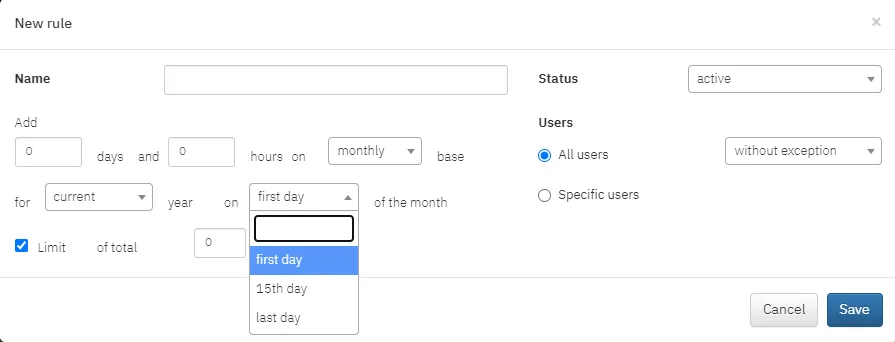
- Click New rule.
- Enter a name and how many days accrue per day, week, month or year.
- Choose whether the rule is for the current or next year and whether it applies at the start, middle or end of the month.
- With Limit, set a maximum after which accrual stops.
- Set the rule as active or not, and for all employees or specific people.
Want to check the numbers? Try the leave accrual calculator.
Categories
Section titled “Categories”In Categories you reorder, edit and delete leave categories and change their colour. Add category adds a new one: name, index in the monthly report, whether it is included in the report and whether it is active.
Restrictions
Section titled “Restrictions”Restrictions block days on which leave cannot be requested, for example around a major delivery.
- Click Add restriction.
- Enter a name, the period and whether it applies to the whole organization or specific people.