

Users
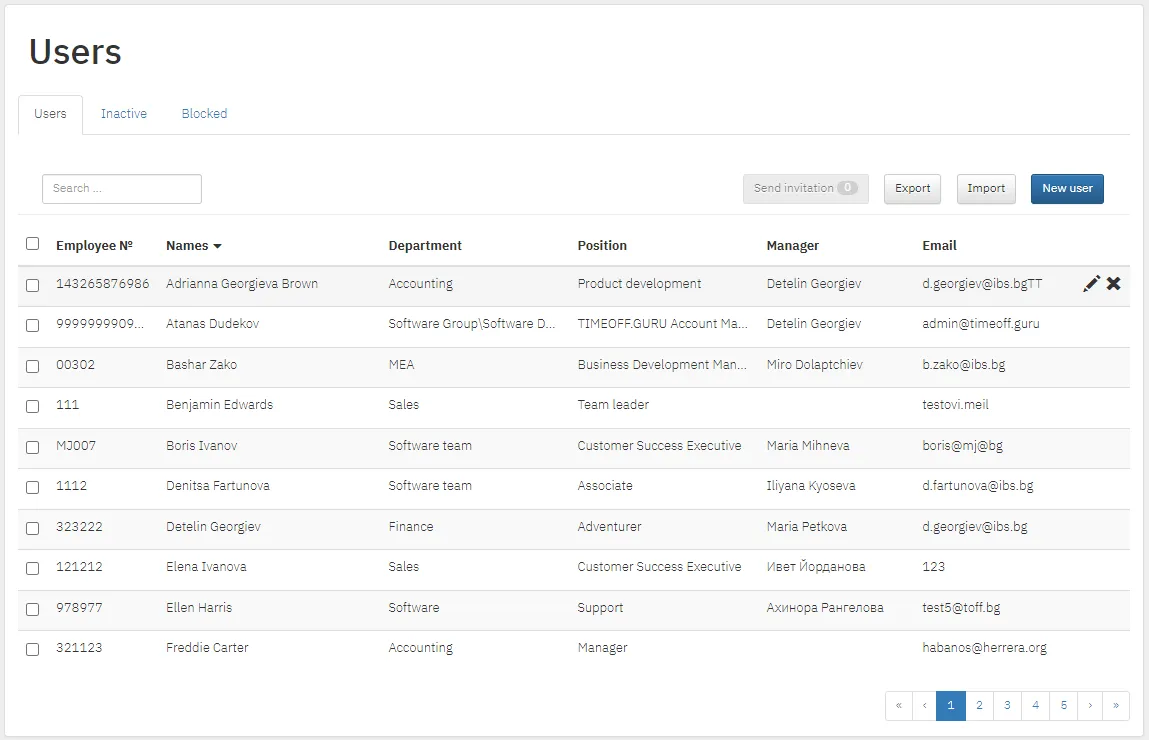
The Users menu holds all active, inactive and blocked users.
New user
Section titled “New user”- Click New user.
- Fill in the tabs. Required fields are marked with an asterisk (*).
| Tab | What you enter |
|---|---|
| General | Basic details and the employee number (Employee №) |
| Organization | Organization, manager, Payment and Daily work hours. The last two are needed for the monthly report. The replacement rule options appear with the info icon |
| Absences | Default and remaining paid and unpaid leave days |
| Bonus days | Bonus days (compensations). Visible if Compensations is on in General settings |
| Locations | The user’s work locations |
| Other | How they receive approval requests (immediately or grouped), the notification channel (email, mobile app or both) and an alternative name |
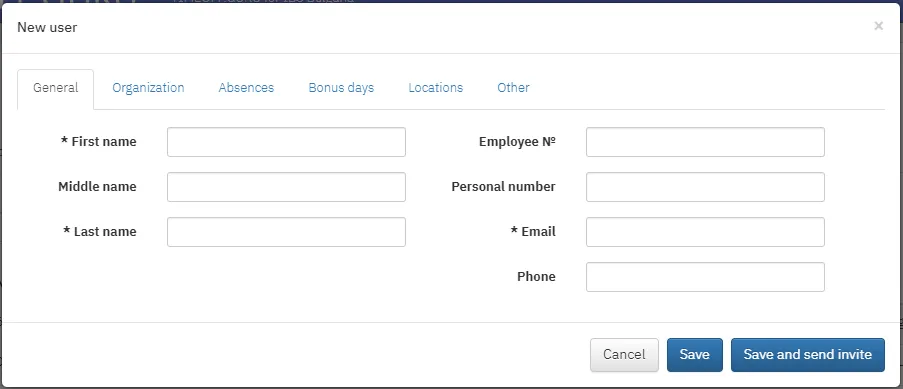
- Click Save to invite the user later, or Save and send invite to invite them now.
Import from Excel
Section titled “Import from Excel”Handy for many users at once.
- Click Import and download the sample file.
- Fill it in. The first row is an example. Keep the cell formats: most are text, First working day is a date, Phone is a number.
- Click Continue and choose the file.
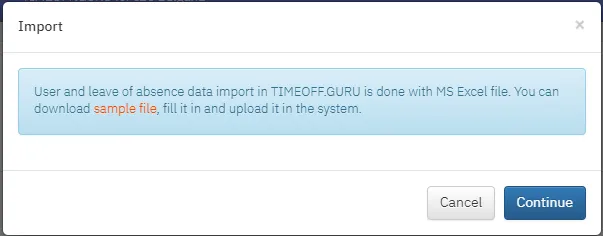
The system tells you how many users it added, or what is wrong with the file.
Sending invitations
Section titled “Sending invitations”- Tick the users in the list. The checkbox at the top selects everyone.
- Click Send invitation.
Each user receives an email invitation and must set a password within 24 hours. You can only invite users whose required details are filled in.
Export
Section titled “Export”Export opens a window where you choose which data to export to Excel.
Deactivating
Section titled “Deactivating”- Fill in Last working day in the user’s profile.
- Click the cross button (✕) at the end of the row.
A deactivated user has no access. You find them in the Inactive tab: the eye button shows their details, the check mark (✓) activates them again.
Blocked users
Section titled “Blocked users”Blocked lists users blocked after several failed login attempts. An administrator unblocks them here.